
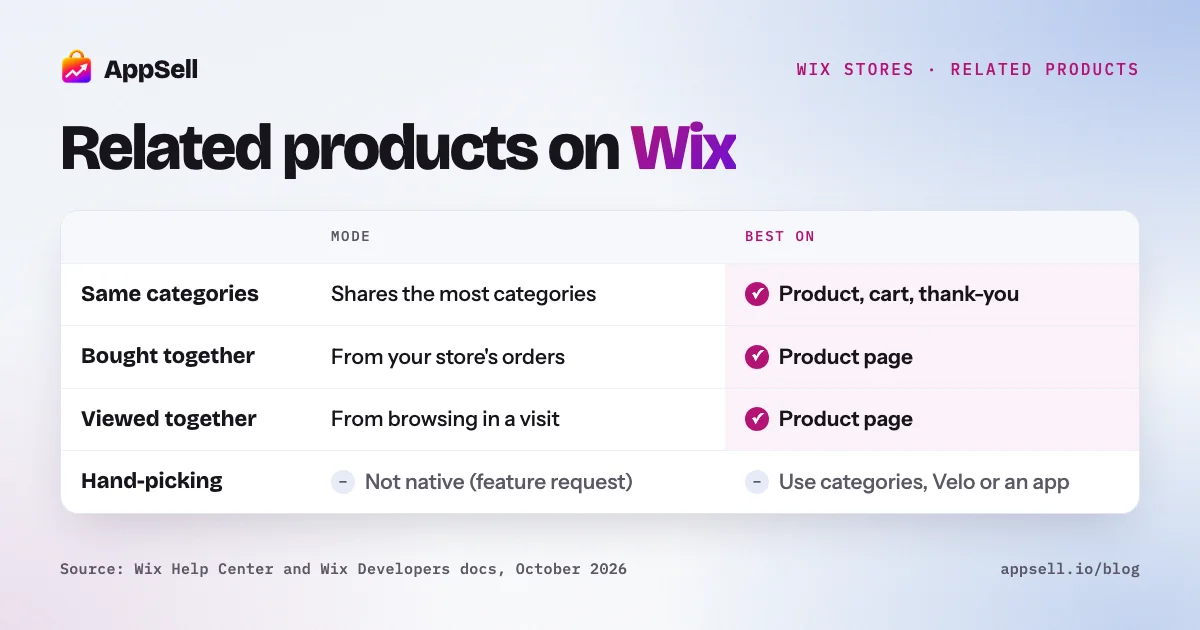
Wix’s Related Products gallery shows other products automatically, in one of three modes, and you can’t hand-pick what it shows. It can pick products from the same categories, products frequently bought together, or products frequently viewed together. It works best on the product page, the “same categories” mode also suits the cart and thank-you page, and a new store sees its All Products category until there’s enough data.
This guide explains how the gallery decides, which mode to use where, why it sometimes shows the wrong products, and how to get more control.
Wix related products at a glance
- Three modes: from the same categories, frequently bought together, frequently viewed together.
- Ranking: “same categories” favors products that share the most categories with the item being viewed.
- Placement: product page for all modes; cart and thank-you page for “same categories”.
- Not possible natively: hand-picking products per item (a Wix feature request), a discount on the suggestion, or suggestions inside the side cart.
- New stores: the gallery falls back to All Products when there isn’t enough data.
What is the Wix Related Products gallery?
It’s a slider of product cards that changes with the product the shopper is viewing. You add it from the Store section of the Editor’s Add Elements panel. It’s one of two “smart” galleries in Wix Stores. The other is Best Sellers, which ranks products by sales across the whole store and shows the same list on every page.
The gallery is styled like other Wix product sliders. You can rename the title (it defaults to “Related products”), turn arrows, pagination dots and Quick View on or off, and show an Add to Cart button. That button can open a success pop-up, open the side cart, go to the cart, or show a checkmark.
How do you add related products on Wix?
Drag the gallery onto the page and choose a mode in Settings. The steps are the same in the Wix Editor and Wix Studio:
- Open the product page in the Editor.
- Click Add Elements, choose Store, then Related Products.
- Drag the gallery to where you want it, usually below the product details.
- Click the gallery, open Settings, and choose how it picks products.
- Publish, and check it on the live site.
One quirk catches most people: in Preview the gallery doesn’t change from product to product. It only updates per product on the live site.
How does Wix decide which products are related?
Each mode uses different data. Wix’s developer documentation, which describes the same engine the gallery uses, explains them:
- From the same categories: shows the items that share the most categories with the product being viewed. A Wix forum explanation gives the example of a pair of jeans in three categories: a product in all three of those categories ranks first, one in two ranks second, and one in only one ranks third.
- Frequently bought together: shows products that customers have bought together with the item.
- Frequently viewed together: shows products that shoppers looked at in the same visit.
On the cart and thank-you page, where there are several products, the “together” modes are calculated from the first item in the list. Wix doesn’t publish how much sales or browsing history the “together” modes need. That’s why a newer store often gets better results from “same categories”, which works from day one.
Which mode should you use on which page?
Use “same categories” on the cart and thank-you page, and pick by goal on the product page.
| Page | Best mode | Why |
|---|---|---|
| Product page | Frequently bought together, once you have orders | Suggests complements people actually buy together |
| Product page (new store) | From the same categories | Works without order history |
| Cart page | From the same categories | The mode Wix recommends for the cart |
| Thank-you page | From the same categories | Gives the customer a reason to keep browsing |
| Homepage | Best Sellers (not Related Products) | Same list for everyone, ranked by sales |
Why is the gallery showing all products or the wrong ones?
Usually it’s thin data or messy categories. Three common causes:
- Not enough data yet. When Wix doesn’t have enough product data, as in a new store, it shows your All Products category instead. The “together” modes need real orders and visits to work.
- Categories that are too broad. If most products sit in the same big categories, “same categories” can’t tell them apart, so it shows nearly anything.
- Categories that are too narrow. A product alone in its own category has nothing to be “related” to.
Because “same categories” ranks by category overlap, your categories are the steering wheel. Adding a small, specific category, such as “Espresso accessories” next to the broad “Coffee” category, pulls the right items to the top for every product in it.
Can you hand-pick related products on Wix?
Not in the built-in gallery. Wix lists choosing related products for individual items as a feature request, and forum replies confirm the selection can’t be edited. You have four ways to get more control:
- Shape your categories. The cheapest fix. Use the category-overlap ranking above so the right products naturally rank first.
- Use a Slider Gallery set to a specific category. For a product that needs particular accessories, put them in a dedicated category and show that category in a slider on the product page. You choose the products, but it’s the same list for every product using that page layout.
- Write custom code with Velo. Wix’s developer platform lets you build your own related-products section, or a custom recommendation algorithm that appears in the gallery’s settings next to Wix’s own modes. It works, but you build and maintain the code.
- Use an app that lets you choose the products for each item or each cart and attach a discount.
If what you really want is to sell items together at a set price, see our guide to product bundles on Wix.
Can related products show in the cart or side cart?
On the cart page, yes. In the side cart, not natively. Wix recommends the “same categories” mode for the cart page. Wix’s side cart settings cover which elements show, the design and the text, with no product suggestions. As more Wix stores open the side cart on Add to Cart instead of going to the cart page, that gap matters: the moment a customer adds something is often the best moment to suggest the next item.
How do you choose good related products?
Suggest what completes the purchase, not what competes with it.
- Complements over substitutes. On a product page, a second similar product makes the shopper choose; a matching accessory adds to the order.
- Lower-priced add-ons in the cart. In the cart the customer has decided, so small, clearly related items are easy yeses.
- Keep it short. A long row of suggestions gets skimmed. A few relevant items beat a full slider.
- Check it on mobile. Most product pages are viewed on phones, where only one or two cards show at a time.
When is the native gallery not enough?
When you need to choose the products, discount them, or show them in the side cart or at checkout. The gallery is a good free start. Stores outgrow it when specific products need specific add-ons, when a small discount would turn a suggestion into a sale, or when they want suggestions where Wix’s gallery can’t go.
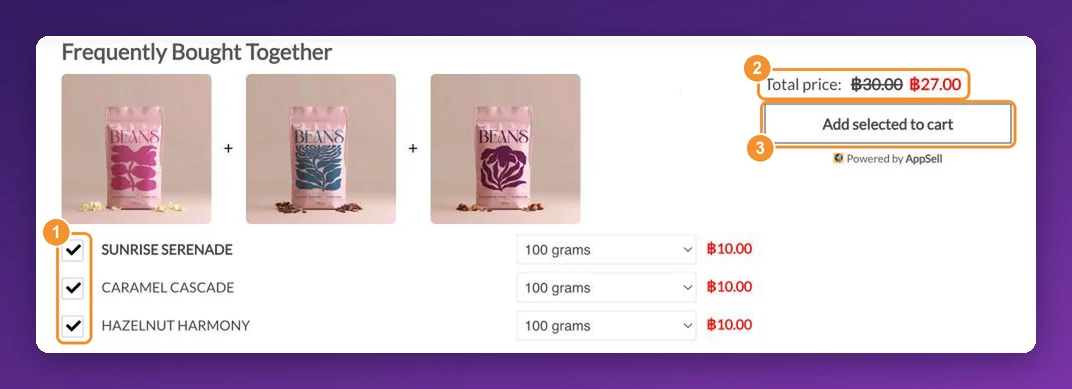
Setting it up with AppSell
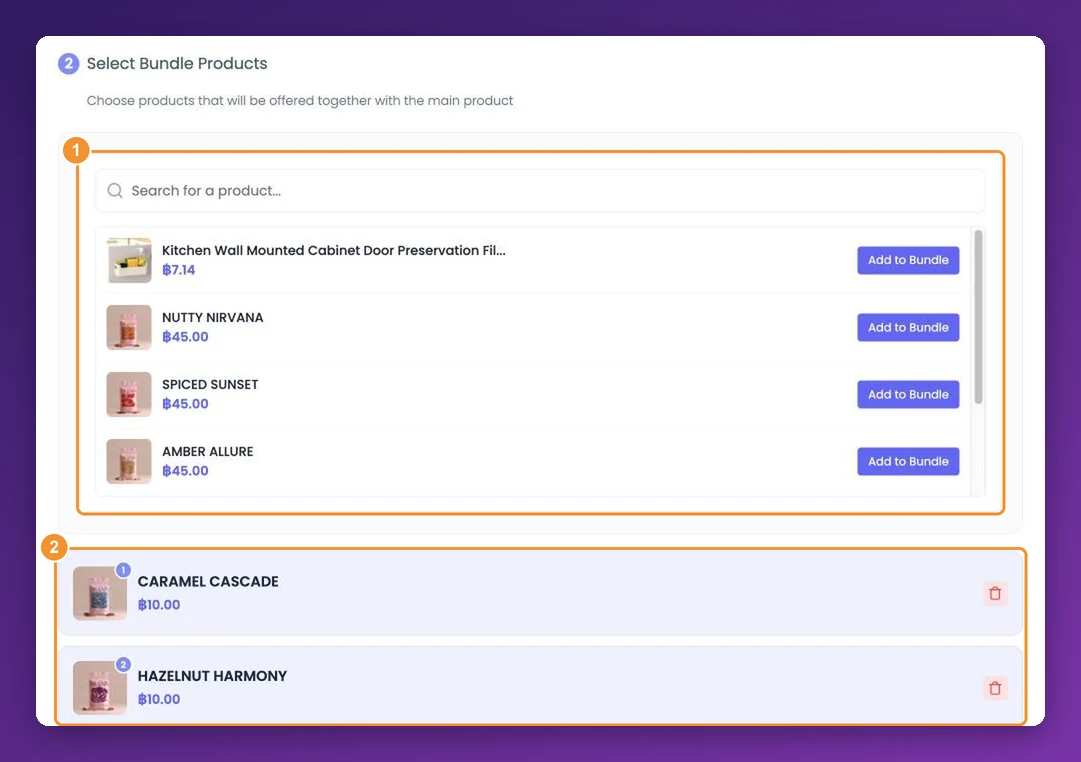
AppSell lets you choose exactly which products to suggest, on the product page, in the cart and side cart, at checkout and on the thank-you page, with an optional discount and rules for when each offer appears.
Frequently asked questions
- How do I add related products on Wix?
- In the Editor, open Add Elements, choose Store, then Related Products, and drag the gallery onto your product page. In the gallery's Settings, pick how it chooses products: from the same categories, frequently bought together, or frequently viewed together. The same steps work in the Wix Editor and Wix Studio.
- Can I choose which related products show on Wix?
- Not in the built-in gallery. Wix chooses the products automatically based on the mode you select, and lists hand-picking related products per item as a feature request. You can steer the gallery through your categories, use a Slider Gallery set to a specific category, write custom code with Velo, or use an app.
- How does Wix decide which products are related?
- In the 'same categories' mode, Wix shows the products that share the most categories with the item being viewed, so a product in three of the same categories ranks above one that shares only one. The 'frequently bought together' and 'frequently viewed together' modes are based on your store's own sales and browsing activity.
- Why is my Wix related products gallery showing all products?
- When Wix doesn't have enough product data, for example in a new store, the gallery shows your All Products category instead. The data-driven modes need sales and browsing history before their suggestions become meaningful.
- Can related products show in the Wix cart or side cart?
- On the cart page, yes: Wix recommends the 'same categories' mode there. Wix's side cart documentation doesn't mention any product recommendations, so suggestions inside the side cart need an app.
- Why don't related products change in preview?
- In Preview, the gallery doesn't update from product to product. It only changes per product on your live site, so check it there.
- What's the difference between Related Products and Best Sellers?
- Related Products shows items connected to the product being viewed. Best Sellers ranks your products by sales across the whole store and shows the same list everywhere. Best Sellers suits the homepage; Related Products suits product, cart and thank-you pages.
References
- Wix Help Center: Adding a Related Products or Best Sellers gallery
- Wix Help Center: Slider Gallery and Related Products
- Wix Help Center: Adding a Best Sellers gallery
- Wix Help Center: Customizing product galleries
- Wix Help Center: Customizing the side cart
- Wix Developers: Recommendations API introduction
- Wix Developers: Recommendations service plugin tutorial
- Wix Studio forum: Adding a Related Products gallery in Wix Stores