
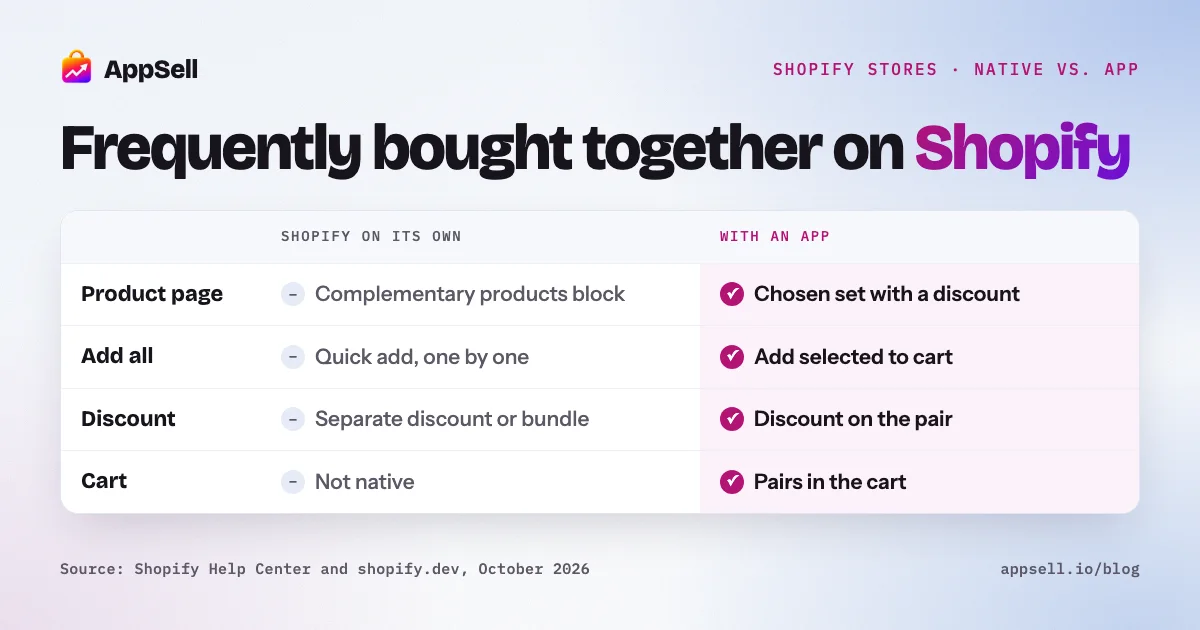
Shopify can show “frequently bought together” natively, through complementary products in its free Search & Discovery app, but only on the product page and without a bundle discount. You choose up to 10 complementary products for each product, and a block in compatible themes shows them with a quick-add button. What Shopify doesn’t do natively is add them all at once, discount the pair, or show them in the cart.
This guide covers how to set it up, why it often doesn’t show, when to use the Shopify Bundles app instead, and where the native options stop.
Shopify frequently bought together at a glance
- Native tool: complementary products in the free Search & Discovery app, chosen manually per product.
- Limit: up to 10 complementary products per product; one complementary block per product page.
- Where: product pages, in compatible themes. Not the cart or cart drawer.
- Not native: a discount on the pair, or an “add all to cart” button.
- For fixed sets: the free Shopify Bundles app, which supports discounts but not mix-and-match.
What does “frequently bought together” mean on Shopify?
Shopify calls it complementary products: items bought in addition to the product being viewed. A phone case and screen protector are complementary to a phone. Shopify separates these from related products, which are similar alternatives, like another phone.
It’s also different from a bundle. Frequently bought together suggests items next to a product; a bundle sells a set as one item at one price.
What’s the difference between complementary and related products?
| Complementary products | Related products | |
|---|---|---|
| Meaning | Bought in addition to the product | Similar to the product |
| How they’re chosen | Manually, by you | Automatically, from purchase history, descriptions and collections; you can add your own |
| Per product | Up to 10 | Up to 10 |
| Stock rule | Must have inventory above 0 | Can show at 0 if “continue selling” is on |
| Best use | Add-ons that complete the purchase | Alternatives for shoppers still deciding |
For frequently bought together, complementary products are the ones you want.
How do you add frequently bought together on Shopify without an app?
Choose complementary products in Search & Discovery, then add the complementary products block to your product page. Search & Discovery is Shopify’s own free app.
- Open the Search & Discovery app and go to Recommendations.
- Pick a product and add its complementary products, up to 10.
- In the theme editor, open the product page template.
- In the product information section, add the “Complementary products” block.
- Set how many products to show and whether to show a quick-add button.
- Save, and check a product page on your live store.
In Shopify’s Dawn theme, the block’s default heading is “Pairs well with”. For large catalogs, complementary products can also be set in bulk through product metafields.
Why aren’t my complementary products showing?
Usually one of the display rules filters them out. A complementary product only shows if it is:
- Active, and not unlisted.
- Published to the Online Store sales channel.
- In stock. Complementary products need inventory above 0.
- Priced above $0, and not a gift card.
- Not already in the visitor’s cart.
Two theme-level causes are also common:
- Your theme isn’t compatible. The block is only available in themes that support it.
- There’s already a complementary block on the page. A product page can have only one.
Can Shopify discount the pair or add them all at once?
Not from the complementary products block. Each suggested product has its own quick-add button (or “Choose options” if it has variants), and there’s no setting for a combined discount or an “add all to cart” button.
Two native workarounds, each with a catch:
- A separate discount. Create an automatic discount that applies when both products are in the cart. It works, but the product page doesn’t show the offer, so customers may not know it exists.
- A fixed bundle. Sell the pair as one product with the Shopify Bundles app (next section). The customer sees one price, but the items are no longer suggested alongside the main product.
When should you use the Shopify Bundles app instead?
When you want to sell a fixed set or a multipack at one price. Shopify Bundles is a free app made by Shopify, available on all plans. It creates fixed bundles and multipacks, and it supports discount codes and automatic discounts.
Its limits:
- Up to 30 components in a fixed bundle, and up to 3 options and 100 variants per bundle.
- No mix-and-match bundles, where the customer picks the items.
- No bundles inside bundles.
- No purchase options, such as subscriptions, pre-orders or try-before-you-buy.
- Upgraded checkout required. Stores still using checkout.liquid customizations can’t use it.
Use bundles for sets you always sell together, and complementary products for suggestions the customer can take or leave.
Can frequently bought together appear in the cart or cart drawer?
Not natively. Shopify documents the complementary products block for product pages, and the cart drawer in Shopify’s Dawn theme has no product recommendations. Showing pairs in the cart takes custom theme code that calls Shopify’s Product Recommendations API with the complementary intent, or an app.
That matters because the cart is where a customer has already decided to buy, which makes it one of the best places to suggest an add-on. After checkout, Shopify’s post-purchase page is another; see post-purchase upsells by platform.
How many products should you pair, and which ones?
Two or three relevant add-ons, priced well below the main product. Shopify’s developer guidance suggests showing a small number near the top of the product page.
- Pair by need, not by popularity. Your best seller isn’t a complement to everything.
- Keep add-ons cheaper than the main item, so adding one is an easy decision.
- Check stock. An out-of-stock complement disappears, which can leave a product with no suggestions.
- Review the pairs when you add products or change your catalog.
When does an app make sense?
When you want discounts on the pair, one-tap adding, or suggestions in the cart. Search & Discovery is a solid free start. An app becomes worth it when you want to discount the set, let customers add several items at once, or show pairs in the cart where Shopify’s native block can’t go.
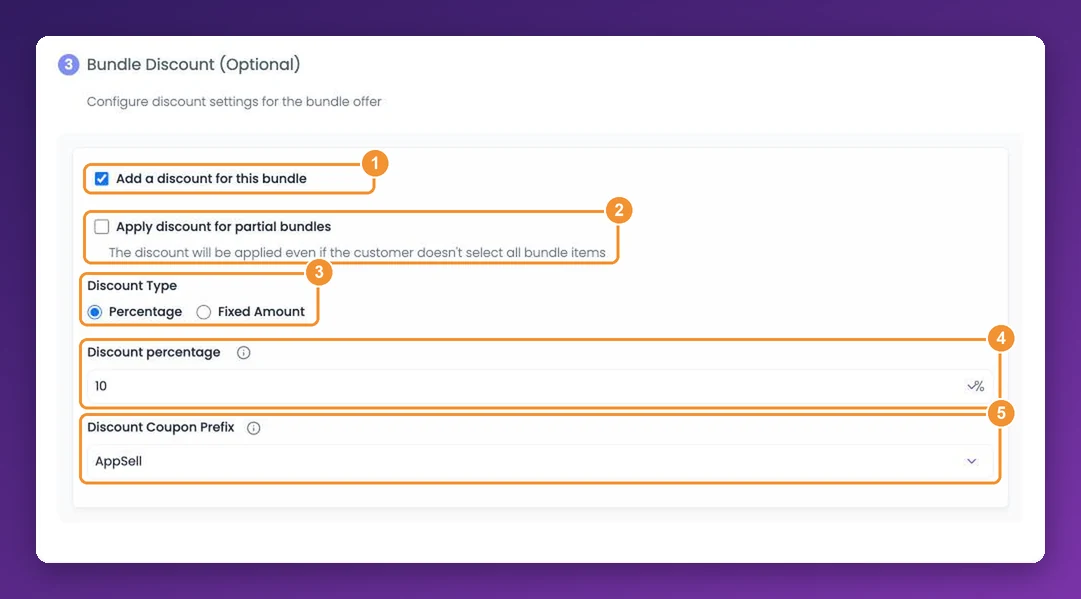
Setting it up with AppSell
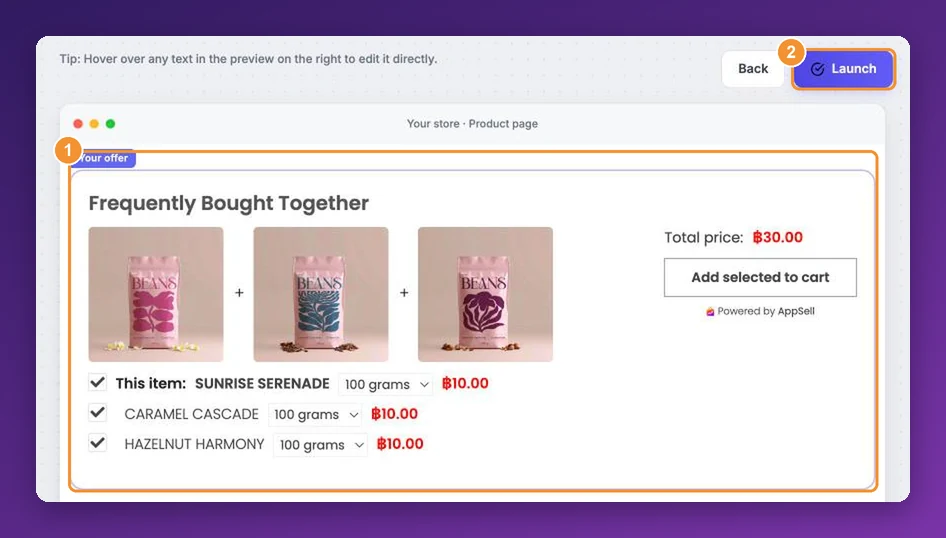
AppSell adds frequently-bought-together sets to your Shopify product pages and cart, with the products you choose, an optional discount, and an “Add selected to cart” button. AppSell is certified Built for Shopify.
Frequently asked questions
- Does Shopify have a built-in frequently bought together feature?
- Partly. Shopify's free Search & Discovery app lets you choose complementary products for each product and show them on the product page in compatible themes. It doesn't add a bundle discount or an 'add all to cart' button, and it doesn't show in the cart.
- What's the difference between complementary and related products on Shopify?
- Complementary products are bought in addition to a product, like a case for a phone, and you choose them manually. Related products are similar to a product and are generated automatically, though you can add your own and hide automatic ones.
- How many complementary products can I add on Shopify?
- Up to 10 complementary and 10 related products per product in Search & Discovery. The complementary products block can show between 1 and 10 of them.
- Why are my complementary products not showing?
- Check that each product is active, published to the Online Store, priced above $0, not a gift card, and in stock (complementary products need inventory above 0). Products already in the visitor's cart are hidden, the block only works in compatible themes, and a product page can have only one complementary products block.
- Can I show frequently bought together in the Shopify cart?
- Not natively. Shopify documents the complementary products block for product pages only, and the default Dawn cart drawer has no recommendations. Showing pairs in the cart needs custom theme code using the Product Recommendations API, or an app.
- Can I give a discount on frequently bought together items on Shopify?
- Not from the complementary products block. You can create a separate discount, or sell the pair as a fixed bundle with the free Shopify Bundles app, which supports discount codes and automatic discounts.
- What can the Shopify Bundles app do?
- It creates fixed bundles and multipacks, with up to 30 components per fixed bundle and up to 3 options and 100 variants per bundle. It doesn't support mix-and-match bundles, bundles inside bundles, or purchase options like subscriptions and pre-orders.
- How many products should a frequently bought together section show?
- Two or three is usually enough. Shopify's own developer guidance suggests showing a small number near the top of the product page, so the suggestions are seen without crowding the page.
References
- Shopify Help Center: Product recommendations in Search & Discovery
- Shopify Changelog: Search & Discovery supports complementary product recommendations
- Shopify Developers: Complementary products
- Shopify Developers: Product Recommendations API
- Shopify Help Center: Shopify Bundles
- Shopify Help Center: Bundles eligibility and considerations